

How do I perform a device reset on an Evoko Liso?
How do I perform a firmware reset for the LISO or convert it to Biamp Workplace connectivity?
A firmware reset is different from a firmware update in that it resets all settings and leaves the LISO in an unconfigured state. After firmware resetting a LISO you will have to reconnect it to Evoko Home and assign it to a room. Scenarios where performing a firmware reset can be necessary include rare issues with the running software on the LISO device or configuration conflicts. It is also necessary if the LISO was previously connected to an Evoko Home server that is no longer available.
The same procedure is used when converting a LISO panel from connecting to Evoko Home to migration for Biamp Workplace (go directly to step 2)
If a LISO is running a very old firmware, performing a firmware reset can also be the quickest and easiest way of bringing it up to date.
The process of performing a firmware reset can be split into two steps:
- Step 1: Create a bootable device reset USB
- Step 2: Boot Evoko LISO with the device reset or Biamp Workplace migration USB
Selecting a suitable USB flash drive
When selecting a USB thumb drive for LISO firmware updates, please make sure the thumb drive used is from a trusted brand with a good quality reputation.
Because of the compact LISO device design the thumb drive should not exceed 50mm in length.
The capacity of the thumb drive could be any sizes 4/8 or 16GB.

When inserting the USB thumb drive, please make sure it fits within the space as shown above, and do not use force when inserting, so as not to damage the LISO panels connector.
Step 1: Create a bootable firmware reset USB
To write the firmware reset image to an USB flash drive you will need to use some kind of disk imaging software. In this example we will use Etcher which is open source, free to use (Apache License 2.0) and available for Windows, Linux and MacOS. You can use other software such as Win32 Disk Imager (GNU GPLv2, Windows/Ubuntu) or Rufus (GNU GPLv3, Windows) if you want to.
If you are migrating a LISO panel to Biamp Workplace, you need to create the USB flash drive using the LISO Workplace migration tool.
1. Start off by downloading the DeviceReset file from the Evoko download page.
2. Download Etcher, install and then run it on your PC.
3. In Etcher press Flash from file.

4. Select the downloaded firmware reset image and press Open.
- There is no need to uncompress the sd card image. Etcher will take care of that.
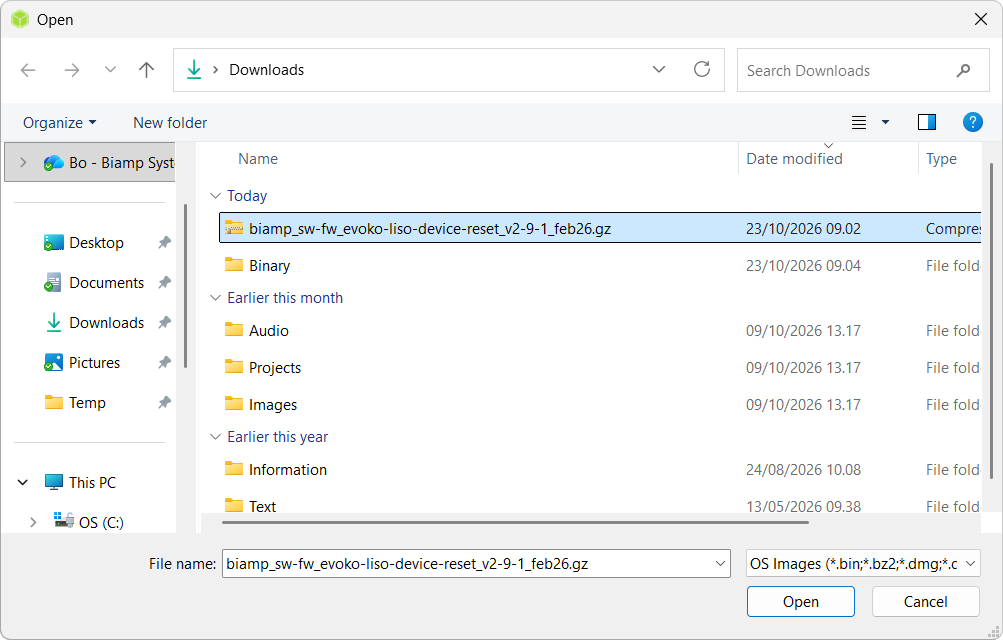
5. Insert and select your target USB flash drive.

6. Caution: All existing data on the USB flash drive will be deleted. To proceed, press Flash!

- The process usually takes around 5-10 minutes depending on the write speed of the USB flash drive.

- Once the image has been verified it will be ready to use.

Step 2: Boot Evoko LISO with the device reset or Biamp Workplace migration USB
Next step is to boot the LISO from the newly created firmware reset or Biamp Workplace migration USB rather than the internal storage.
- To remove the LISO panel from the wall mount, gently rotate it counterclockwise.
- Insert the thumb drive in the USB A connector and repower the LISO panel by disconnecting the RJ-45 or DC plug, and reconnecting this after 10 seconds.
- When powered on with a firmware prepared USB drive inserted, the LISO panel automatically boots from the drive.
- If successfully booted from the USB stick the following text should be displayed:
If you do not want to flash the device, remove the USB image and reboot the device, otherwise it will start flash in 30 seconds
- Once the firmware reset or Biamp Workplace migration is complete the following text should be displayed:
Flash has been successfully completed! Please unplug the USB and reboot the device.
- Remove the USB flash drive and reboot the LISO.
If interrupted during the firmware update procedure, the onboard firmware might be corrupted, and a repeat of the procedure is needed.
If the process is stuck and the LISO panel does not complete the procedure within 5 minutes, please repower the panel without removing the thumb drive to restart the update.
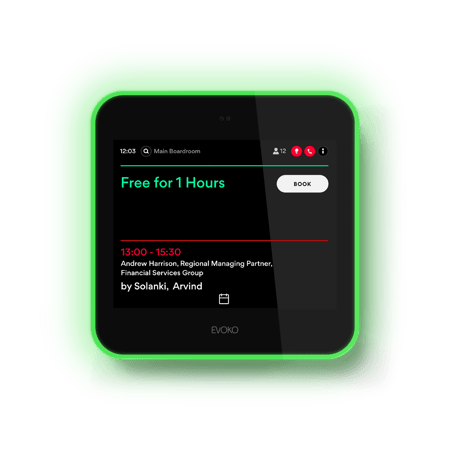
If a device reset has been applied, the LISO panel will show the interface for Evoko Home.
If Biamp Workplace migration have been applied to the LISO panel, it will connect to the Meeting room resource in Biamp Workplace, and show the NASO style interface.
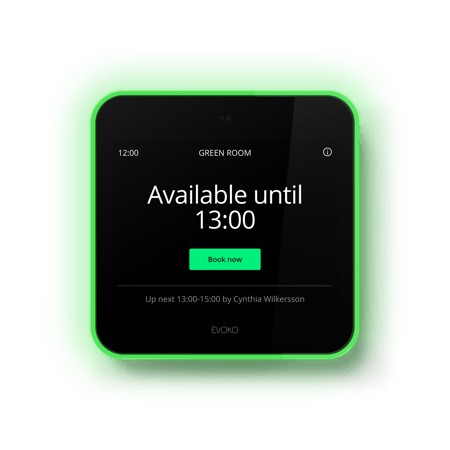
When the LISO panel connects to Biamp Workplace a automatic 30 day trial license is generated.
After this period an valid Booking license is needed:
1-year Booking license (900-02265)
3-year Booking license (900-02272)
5-year Booking license (900-02273)