MPX 250 with Lenovo Thinksmart Core Gen2
Overview
EasyConnect MPX 250 can be easily integrated with the Lenovo ThinkSmart Core Gen 2.
The MPX 250 provides a full-featured USB-C output (supporting USB 2.0, USB 3.x, and DisplayPort Alt Mode video). The ThinkSmart Core Gen 2 supports bring your own meeting (BYOM) connectivity using a dedicated USB-C input port. This combination allows seamless audio, video, and USB device integration between the two systems.
On the ThinkSmart Core Gen 2, the BYOM mode is enabled only when a laptop is connected to the currently active port of the MPX 250.
If no laptop is connected to the active port, or if no port is active, the MPX 250 Extension port is disabled, and the ThinkSmart Core Gen 2 fully exits BYOM mode.
Prerequisites
- EasyConnect MPX 250 is running firmware version 1.2.1 or later
- The latest version of the EasyConnect MPX Management Console is installed (download here)
Setup
Connect the Lenovo ThinkSmart Core Gen 2 to the MPX 250 “Extension” port, which is the downstream USB-C port that supports video output.
A full-featured USB-C Gen 2 cable is required to connect the MPX 250 to the ThinkSmart Core Gen 2.
The included Lenovo 3 m active USB-C cable has been validated and is supported.
Third-party active optical cables (AOC) or other USB-C extension technologies are not supported.
MPX 250 and Lenovo ThinkSmart Gen2

MPX 250 with MPX 250 EXT and Lenovo ThinkSmart Gen2

Configuration
Open the EasyConnect Management Console to apply the recommended configuration.
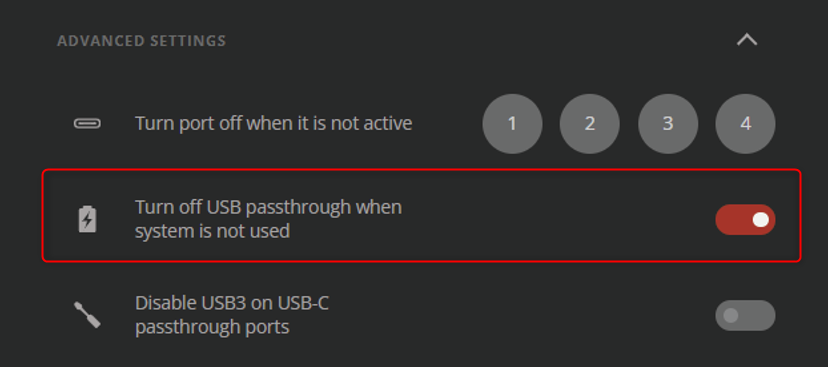
To ensure that the Lenovo ThinkSmart Core Gen 2 exits BYOM mode correctly, enable the setting “Turn on USB passthrough when system is not used”. This setting ensures that the USB-C Extension port is fully disabled when no laptop is actively sharing, allowing the system to properly leave BYOM mode.
Due to the way the Lenovo ThinkSmart Core Gen 2 presents the BYOM dialog immediately when the USB-C connection is electrically activated, the MPX 250 cannot selectively control MTR content sharing ("screen ingest") versus full BYOM mode remotely.
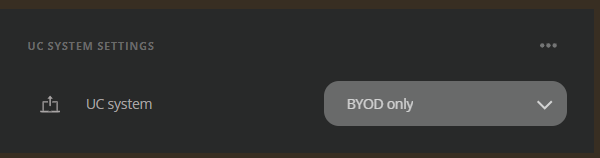
As a result, the UC system in the MPX 250 settings must NOT be configured as an MTR.
Configure the UC System setting as "BYOD Only".