

Overview Screens: Assign a Screen to a Display
The article covers how to "activate" an Overview screen. Activating a screen assigns it to show on a display screen.
- The activation procedure is performed on the Biamp Workplace admin portal's Screens page and on the display monitor where the Overview screen will be shown.
- This procedure can be completed using a mobile device as described in the Procedure section.
Display requirements
-
The display monitor must have a web browser and an internet connection in order to assign an Overview screen to it.
-
The display monitor requires an active internet connection while showing the Overview screen.
-
You will need to use the web browser on that display monitor to complete this procedure.
Procedure
 The laptop icon denotes a step performed on your computer or other device accessing the organization's Biamp Workplace admin portal.
 The screen icon denotes a step performed on the display screen that the Overview screen is being assigned to.
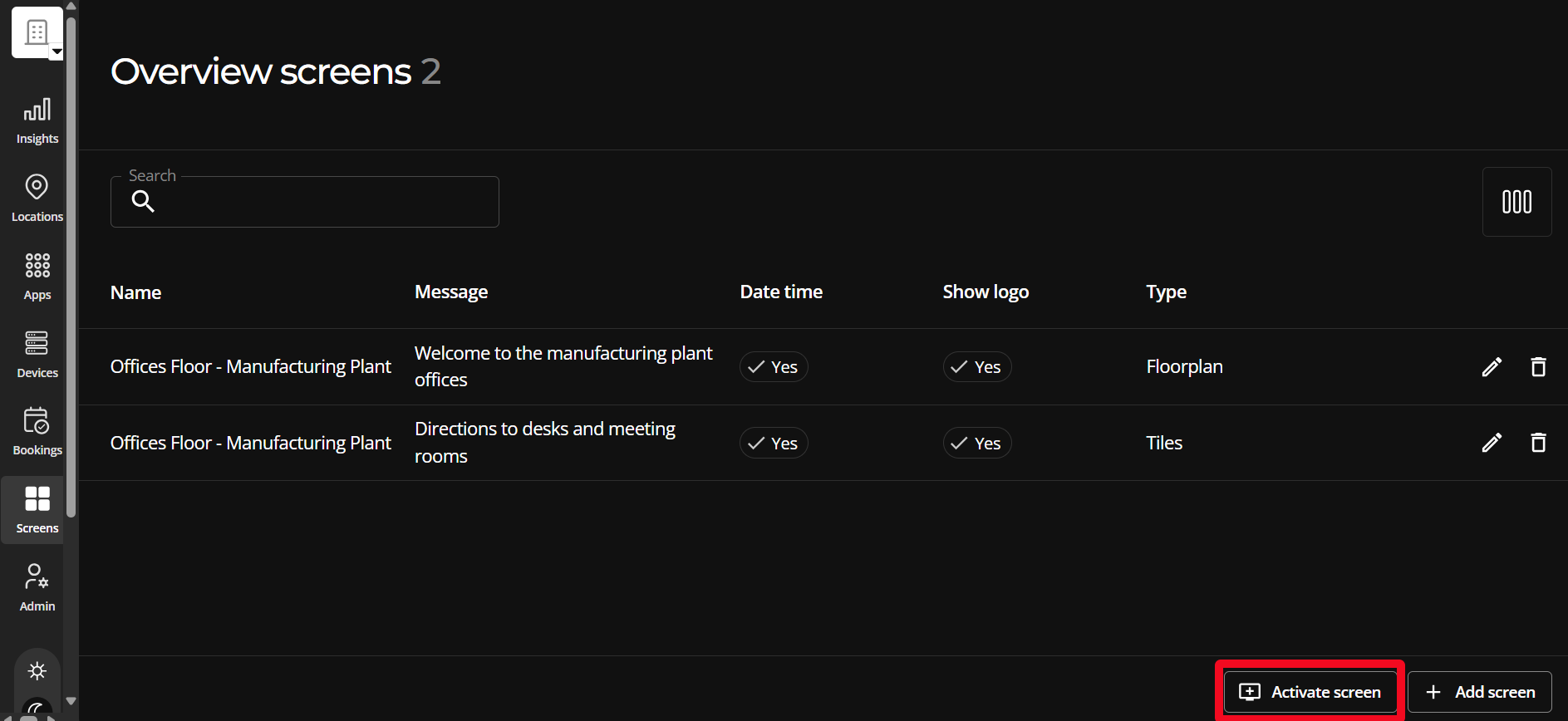
1. On your computer, select the "+Activate screen" button.
- The button is found on the bottom right side of the Workplace admin portal's Overview Screens page.

An Activate overview screen form with instructions will appear.

- Note: You will choose which Overview screen to place on the display monitor later in this procedure.
2. On the display screen, open the browser and go to the URL indicated on the Activate overview screen form: https://workplace.biamp.app/overview/activate
- Note: As indicated by the timer on the screen, these are temporary activation codes good for two minutes.

You can use the QR code on the Activation code webpage to continue the process on your mobile device.
3. In the Biamp Workplace admin portal, copy the activation code into the Activation code field on the form. Then select the Next button to continue.

Activation confirmation
A green, activation complete confirmation pop-up should appear on the lower left side of the Workplace admin portal's screen.
The Overview screen should now be visible on the display screen.
