

PINs: How to Create Identification PIN Codes
This article describes three methods for creating and updating digital ID PIN codes in Biamp Workplace.
- An Owner or Admin user creates a universal PIN code for all organization members.
- Any organization user creates or updates their own individual PIN code in the organization.
- An Organization Admin or Owner creating or updating PIN codes for individual organization users.
Setting a universal PIN code for all organization members
The procedure creates a single PIN code used to unlock ID-required booking actions for all members in the organization.
Location: Owners and admins can create an organization-wide PIN in the organization's admin console in the Workplace admin portal.
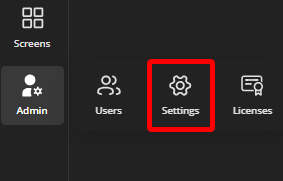
1. Select the Settings cog icon under the Admin tab in the admin console's navigation ribbon.
2. Select the Organization settings tab on the Settings page.

3. Scroll down to the Pin Code section.

4. Check the Enable Organization-wide PIN code box.
5. Enter a 6-digit PIN code in the 6 digits field.
6. Select the Save button.
A user creates or updates their PIN code
Every Workplace organization user can create and update their individual six-digit PIN code.
Requirements
- Each PIN code in an organization must be unique. No duplicate PIN codes are allowed.
- Each member can have one PIN code in a Workplace organization.
Location: Users can create and update their PIN in the Biamp Workplace Booking app.
1. Tap the profile icon in the top-right corner of the Today screen to bring up the user's profile.

2. Scroll down to the Utilities section and tap the "Pin codes button".

3. Select the organization to create or change your PIN code in.

4. Enter a new 6-digit PIN and tap "Save".

Note: All PIN codes in an organization must be unique. If your new code is not, you will be prompted to enter a new code before you are allowed to save a PIN.

Administrative admins create or update user PIN codes
Location: Owners and admins can create and update an individual user's PIN in the organization's admin console in the Workplace admin portal.
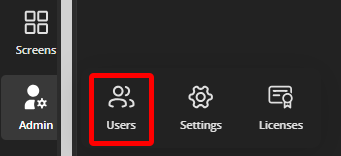
1. Select the Users icon under the Admin tab in the admin console's navigation ribbon.
2. Scroll to the user and either double-click the user's row or select the row's check box and then click on the "Edit" pencil icon.

3. Scroll to the PIN code section and enter a PIN code for the User, then select the Save button.
- Reminder: Each PIN code in the organization must be unique.

The PIN is now available for the user to use.
Further reading
-
For how to enable RFID or PIN identification in Biamp Workplace, please see: PIN and RFID Identification: How to enable
-
For an overview of ID requirements that can be enabled in Biamp Workplace, please see: PIN and RFID Identification: Overview
-
For how to create NFC cards and tags for RFID identification, please see: RFID: How to create NFC Cards and Tags for Users