

BMA 360D and TesiraFORTÉ X - quick start guide
This article describes how to program a TesiraFORTÉ X DSP for use with the BMA 360D microphone. Default configuration files for a conferencing application are linked below, which mimic the features and functionality included in a Biamp Launch-configured system. Please note that Launch auto-configuration is not supported with the BMA 360D.
Software and hardware prerequisites
These instructions assume a system comprised of devices similar to that shown below. The BMA 360D can be deployed in systems beyond the scope of this article; for more information, please see the additional resources on Cornerstone. You will require Tesira Software, Biamp BMA Config and Dante Controller (Audinate) to be installed on your PC, and an Ethernet connection to the TesiraFORTE X on port 1.

Tesira configuration
Download the appropriate configuration file depending on the hardware available to you, and open it in Tesira software. The difference between the files is the maximum number of individual beams. This is dictated by the number of AEC channels the DSP supports. If you plan to use the SmartMix output from the mic, a Tesira X 400 is required. For up to 8 individual beams, use an X 800, and for up to 12, the X 1600. The BMA can also be used with other DSPs outside of the TesiraFORTE X range, as described later in this article. If the TesiraFORTE X is new or in a factory-default state, ensure your PC's network interface is set to obtain an IP address automatically.
BMA 360D-TesiraFORTE X 400-Quick Start-SmartMix.tmf
BMA 360D-TesiraFORTE X 800-Quick Start-8-Beams.tmf
BMA 360D-TesiraFORTE X 1600-Quick Start-12-Beams.tmf
Clear the Launch configuration
- Navigate to the System ribbon.
- Open Device Maintenance.
- Select TesiraFORTE X
- Clear Configuration.

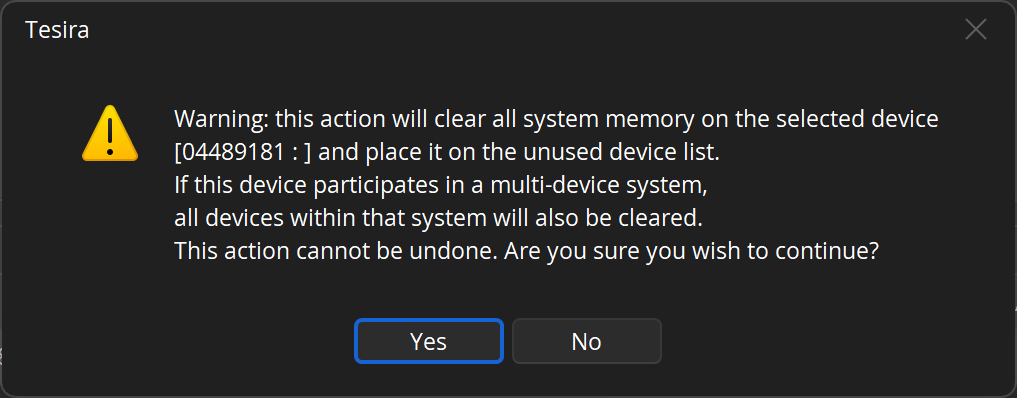
You will be met with the following warning. Select Yes, as the factory configuration may be restored at any time.
Populate the Equipment Table
Now that the device is unconfigured, we can assign the DSP layout to the hardware.
- Navigate to the System ribbon.
- Enter the Equipment Table.
- Select your TesiraFORTE X under the Host Name field.
- Press OK.

Configure Converged Mode for simple Tesira and Dante discovery
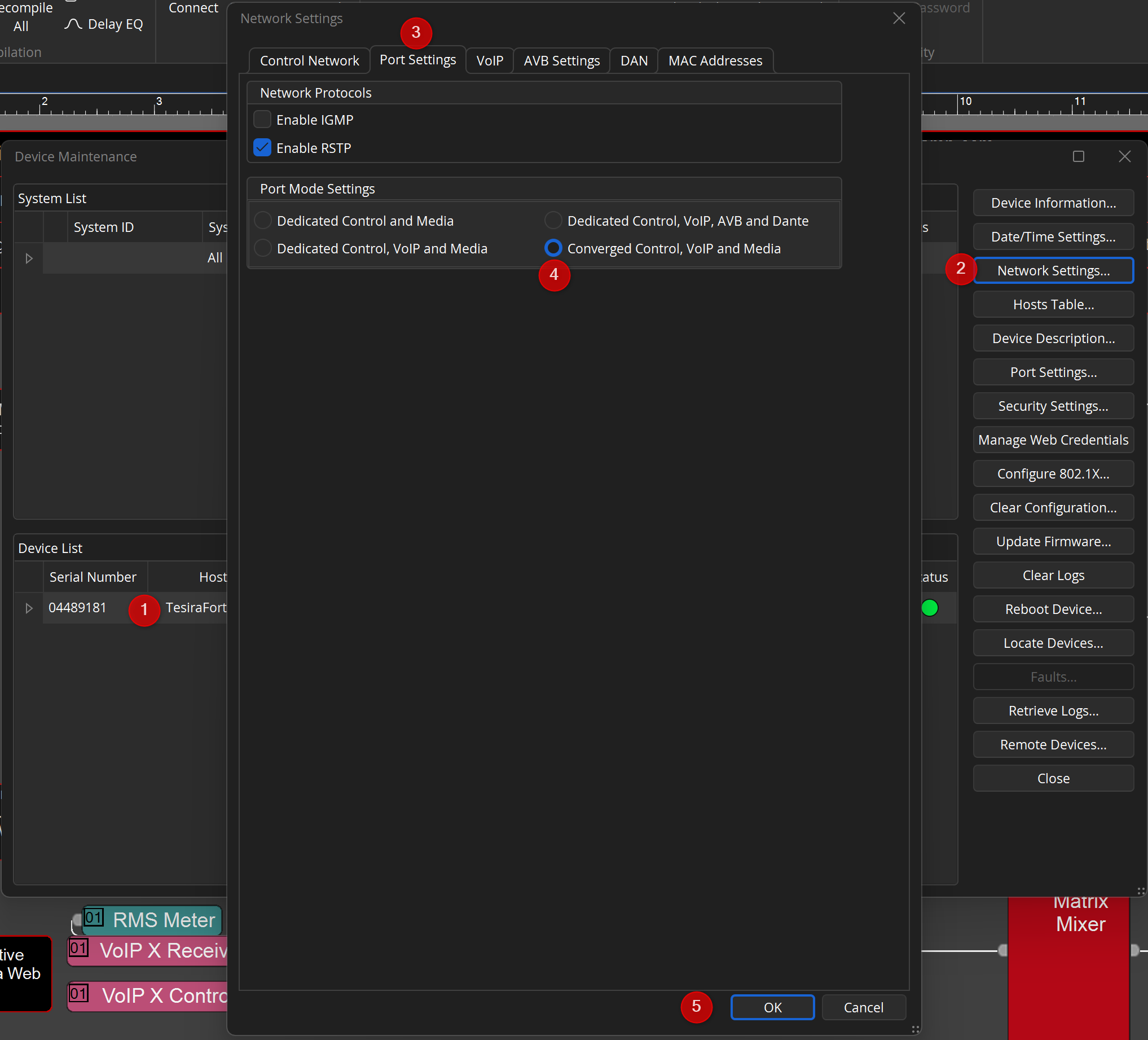
This setting is optional should you have a different network topology. However, in a simple setup, Converged port mode in TesiraFORTE X will allow configuration of the DSP and BMA 360D at the same time using one NIC on your PC.
- Enter Device Maintenance and select your TesiraFORTE X.
- Enter Network Settings.
- Select "Converged Control, VoIP and Media".
- Press "OK".
Configure Mute Sync
In the Biamp BMA Config software, we will find the control IP address of the BMA 360D.
- Select Admin from the hamburger menu.
- Note the Control IP address.

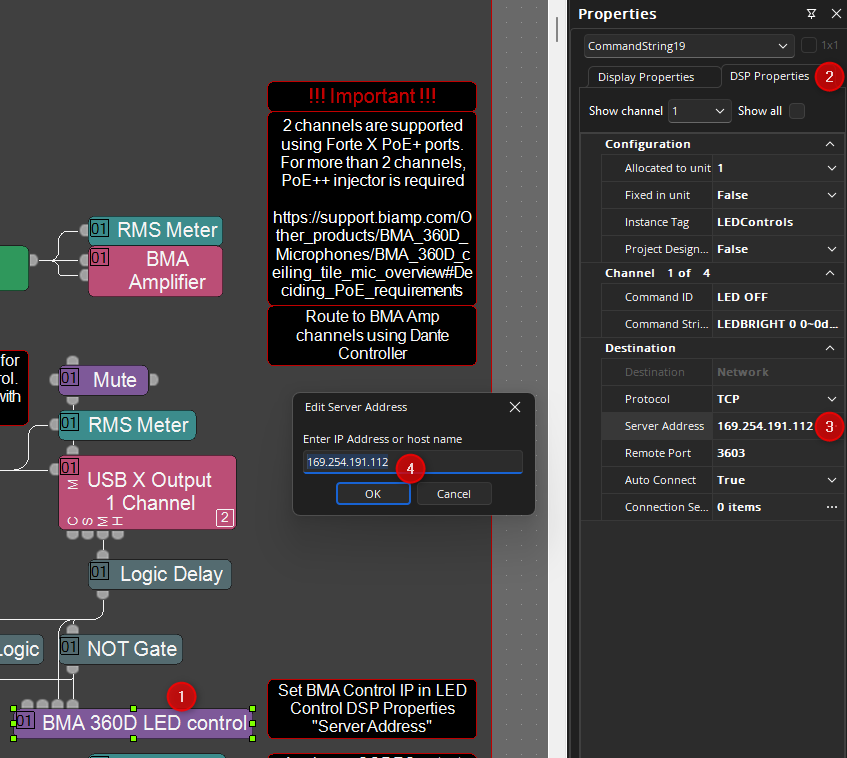
Configure the address in the Tesira file to support control of the mic LEDs for mute sync.
- Select the "BMA 360D LED control" network command string block.
- Enter DSP Properties
- Configure the Server Address.
- Add the IP address you just retrieved from the microphone.
Send Configuration
To load the Tesira layout to the device
- Go to the System ribbon.
- Send Configuration.
- Enter the system description of your choice.
- Press OK.

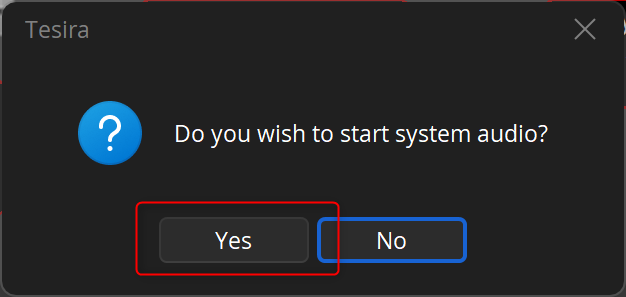
You will be asked if you wish to "start system audio", then start the audio partition.

Close the Manage Partition Audio dialogue. The system is now running, and you are connected live.
Route in Dante Controller
If you configured the TesiraFORTE X in Converged mode, ensure you select the same NIC in Dante Controller:

Then route the appropriate channel(s) to the TesiraFORTE X Dante input(s). In this example, we are using the SmartMix output to a single input channel:
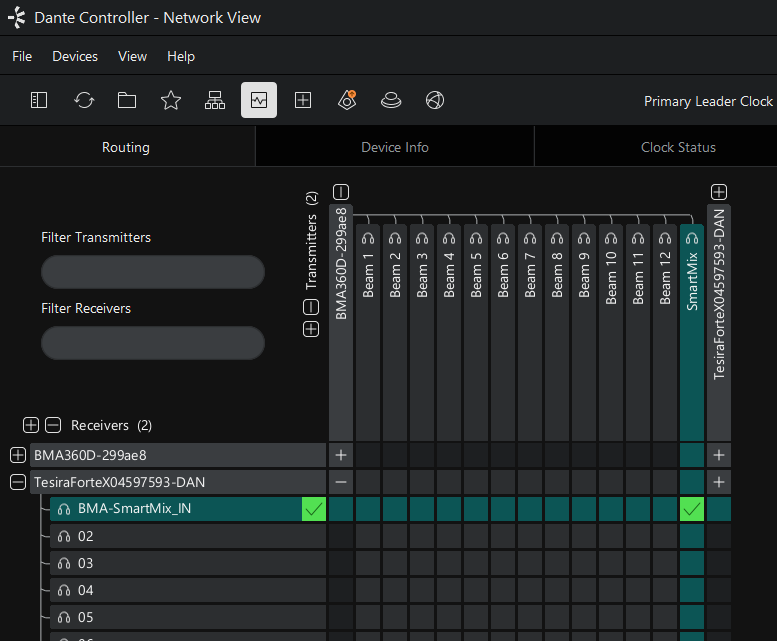
Now route the Tesira loudspeaker outputs to the BMA inputs:

Make initial adjustments and test
Now we are ready to make a test call. For simplicity, connect the TesiraFORTE X USB interface to the UC system or a laptop, and enter a call. The system can be fine-tuned in any manner you wish. Below is an example workflow.
- The USB X input block will track the level of the UC system or host PC. You may wish to adjust the overall output level to the speakers independently (which will not track the UC).
- While listening at the far end, check the gain structure and input processing.
- If you are using multiple far-end sources, it may be necessary to trim each input type to provide a consistent level to the loudspeakers, regardless of which source is in use.

Additional options
The included Tesira layout files have been preconfigured to work with the Biamp Launch driver included within Project Designer versions 1.36 and higher. Please see the link in the Further reading section for more information.
If you require additional USB endpoints or Bluetooth, an EX-USB or EX-UBT can be added to this layout.
For more loudspeaker channels, the Tesira PoE amplifiers add AMP-450P/AMP-450BP or any Voltera D model.
This layout can be modified to work with a TesiraFORTE DAN DSP. AI noise reduction must be removed from the signal path, and the USB X blocks must be replaced with "Rackmount USB" blocks. The same is true for a TesiraFORTE AVB processor, though in that case a TC-5D must be added to the system.