

How to use virtual control inputs and call actions in Vocia
Users calling into the POTS-1 will be prompted to enter an Action ID (a 4-digit extension the caller will dial once connected) to do various things. Among other things, the Action ID can initiate a pre-recorded page, start a live page, trigger a GPIO output on another device, perform mute or volume functions, etc.
To function, Action IDs need to have a Virtual Input Control assigned to them (in much the same way a Zone get a Page Code assigned to it). The Virtual Input Control links to the desired action using Control Events.
Defining Virtual Control and Call Action
On Vocia devices with GPIO ports users can define actions driven by logic input or contact closure events linked to Control Input events. The POTS-1 and VoIP-1 devices take user input via 4-digit numbers (Call Action IDs) to trigger Virtual Control Inputs. The Virtual Control Input is assigned to initiate a Page Code or other behavior. For instance:
-
Step 1 - create a Zone and assign a Page Code to it (in the World)
-
Step 2 - create Virtual Control Input and assign a Page Code to it (in the POTS-1 / VoIP-1)
-
Step 3 - create a Call Action ID and assign a Virtual Control to it (in the POTS-1 / VoIP-1)
To initiate an existing Page Code via POTS-1 you will need to assign it to a Virtual Control. Once a Virtual Control is created you will be able to assign it to a 4-digit Call Action ID for callers to dial to trigger the Control Event. The Virtual Control is linked to a Control Event (a Page Code is an Event).
In the Virtual Control window you can edit the text of the Virtual Control Input name or description, re-assign the Control Event type, and change the Assigned Value as needed.
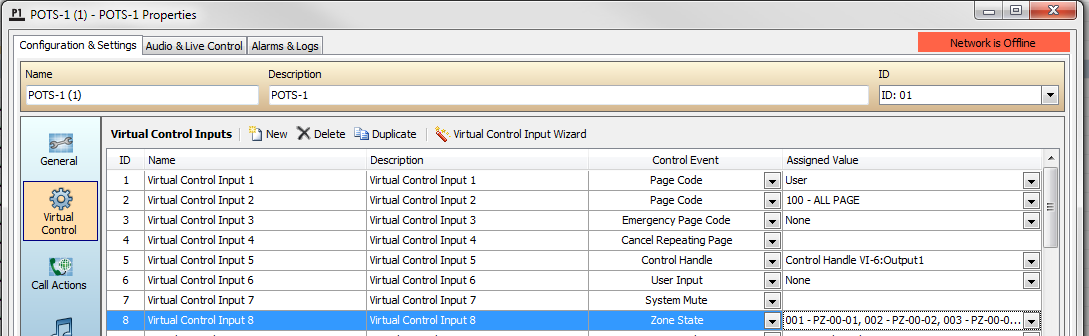
In the Call Action window you can assign Virtual Control Inputs to one ort more Call Action ID's.

What are Virtual Controls
The POTS-1 supports the ability to create Virtual Controls. A POTS-1 Call Action must be associated with a Virtual Control, which is used to trigger a Control Event.
Virtual Controls can be added by selecting New or Duplicate, or be removed by selecting the desired Virtual Control and pressing Delete.
The Name and Description columns allow each Virtual Control to be named for easy identification.
The Control Event field can be used to select a Page Code, Emergency Page Code, Cancel Repeating Page, Control Handle, User Input, System Mute or Zone State Control Event.
The following Control Events are supported;
-
Page Code - Trigger a Live, Pre-Recorded, Delayed or Auto-Repeat Page Code. In addition to the Live or Pre-Recorded Page Codes the Assigned Value can be configured with the User option in which the caller will be prompted to select the desired Page Code.
-
Emergency Page Code - Triggering a Live Emergency Page Code. In addition to the Live Emergency Page Code the Assigned Value can be configured with the User option in which the caller will be prompted to select the desired Page Code.
-
Cancel Repeating Page - Cancel an auto-repeating Paging event. The Auto-Repeating Page event must have previously been activated on the VoIP-1 and assigned to the same Line.
-
Control Handle - A Control Handle is used for changing one or more Control Outputs.
-
System Mute - Activating or deactivating System Mute.
-
Zone State - Setting the Background Source, Volume, Zone Mute, BGM Mute, Page Inhibit and Allow Page Inhibit states for up to 10 Zones
The Assigned Value field can be used to configure additional options for the selected Control Event.
| Virtual Control Input Wizard |
|
Open the POTS-1 / VoIP-1/2 in Vocia. Click on the "Virtual Control" icon (second from top in the menu on the left side). Any existing Virtual Controls will be shown here. To create a new Virtual Control for existing Page Codes simply select the "Virtual Control Input Wizard". In the pop-up menu you will need to check the "Create virtual control inputs to trigger Page Code events". By default it will create a Virtual Control for each Page Code. If you only want a subset of all Page Codes you can select only the desired ones. Repeat as needed if Virtual Controls for Emergency Page Code Events are being created. Click "Finish" |
What is a Call Action
A Call Action is used to assert the operation of a POTS-1 Virtual Control via the phone PIN pad.
Depending on the Control Event type, the Call Action may also be able to be configured with the User option in which the caller will be prompted to select the desired state for the Virtual Control.
When more than one Call Action is configured for the POTS line, an Action ID will be required to be entered via the PIN pad to select which Call Action should be executed. If only one Call Action is configured for the POTS line, the action will be executed immediately after the call is answered on that line, i.e. the caller will not be prompted to provide an Action ID.
Call Action ID - Each POTS line can be assigned a list of Call Actions identified by Call Action ID's.
Virtual Control Input - Each Call Action is pre configured to activate or deactivate a single Virtual Control, which in turn will trigger the associated Control Event.
Control Event - Details the Virtual Control Input Control Event as specified on the Virtual Control tab.
Assigned Value - Details the specific type or value of the Control Event.
Action - Depending on the Control Event type and Assigned Value, the available Action choices range from Activate, Deactivate and User. If User is selected the person calling will be presented with the option whether to Activate or Deactivate the Control Event.
Page Now - Enables/disables the playback of the “Page Now” prompt.
Page Ending - Enables notification that the paging event will end in 15 seconds. This will also be followed by tones indicating the page is ending shortly.
Page Recorded - Enables/disables the playback of the “Page Recorded Please Wait” prompt. The Option to cancel the page with the * key will be given.
Hang Up - Determines whether to transmit the recorded announcement of a delayed live page when the user hangs up the phone before pressing the # key.
Repeating Page - The options presented relate to a Auto Repeat enabled Page event.
-
Cancel - The currently repeating Page will be cancelled so that the new Auto Repeat Page can be executed
-
Proceed With No Repetition - The new Auto Repeat Page Code will be executed with no repetition
-
Abort - Aborts the current call action
-
User - The user will be prompted to make this decision during the Phone call
Continuous - Enables the ability to make multiple pages per call. After submitting or cancelling the current Page, additional Pages can be made.
Play Welcome Prompt - Upon connection of the call the "Welcome" prompt will be played.
| Call Action Wizard |
|
Open the POTS-1 / VoIP-1/2 in Vocia. Click on the "Call Action" icon (third from top in the menu on the left side). Any existing Call Actions will be shown here. To create a new Call Action list simply select the "Call Action Wizard". The Wizard will allow you to create new Call Actions for triggering:
In each case the Call Action ID will be appended to a default base Call Action ID number.
Call Action ID's can either
|