

Integration Call2Prayer with Vocia
This article describes the integration of call to prayer system which is widely used in the Middle East region, the call to prayer is a vocal announcement recited by a recorded messages or live human voice, below is some of the Characteristics of call to prayer audio source.
- Second priority after emergency page code
- Triggered five times a day, each geographical location have different timing scheme,
- Require a special scheduler.
- background music system should be muted prior, during, and post the call.
- Mute is required for shops, bars, toilets during the call.
- Toilers and washrooms should have a dedicated loudspeakers circuits.
Call-2Prayer Software and Hardware
Call2Prayer software is a widely used program in the region, which can be hosted on PC or NUC, the system will be activated based on your geographical location which will be activated by LC acoustics, there is several options to get the Audio from the system via Analogue output or USB or Dante, the system comes with USB dongle which will activate the software on the host pc and provide a Output relay which can be activated to recall a specific preset in the Vocia or Tesira system, for more information about Call-2Prayer please visit https://www.call-2prayer.com/
- Connect the USB Dongle in the PC or NUC device
- Run the Call-2Prayer software the below.
- You can add your enterprise logo if needed.
- Make sure to sync the time to the appropriate time zone.

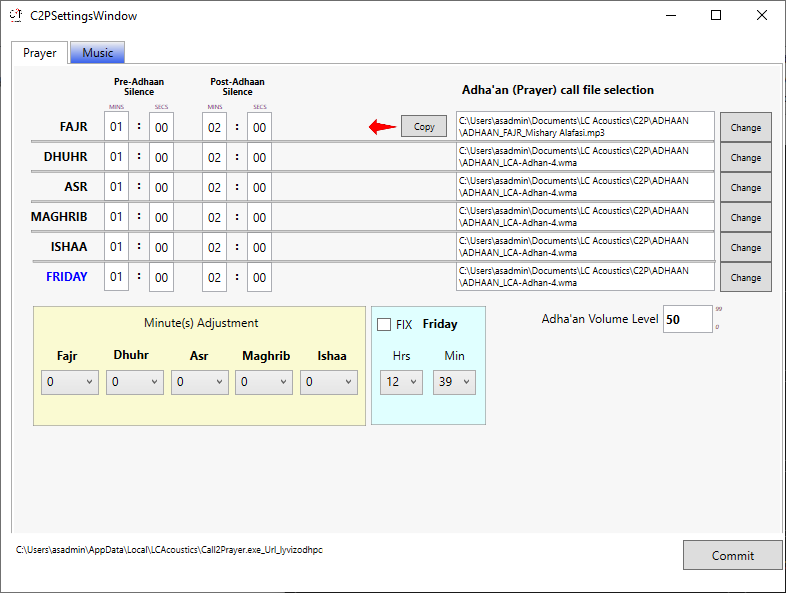
Setting Delay Pre and Post Athan
if you Hoover on the Call-2Prayer logo using the left click, then you will be able to access the below setting:
- Set up the Pre and Post Delay for the Adhan.
- Select the Audio file for each prayer, Fajr Prayer will have different file.
Connecting Call-2Prayer to Vocia VI-6
In this example we will be connecting the Aux audio from the PC into channel-5 of the VI-6, and the Relay output of the call to prayer will be connected to the control input-1 as shown int he below diagram.

Into Vocia Software
- In the VI-6 Configuration, change Input-5 into User Input.
- Click on the Control Tab, Control Input Frame, Change the Control Event for Input-1 as user Input,
- Select the desired zones that you are willing to play the Adhan at it.
- Verify the Audio Signal and Control response in the Audio and Live Control Tab.
- Save and compile and send the configuration.


