Apprimo Touch Panel shows all white GUI
Clear the browser cache
If your Apprimo Touch Panel is showing an all-white GUI, clear the browser cache.
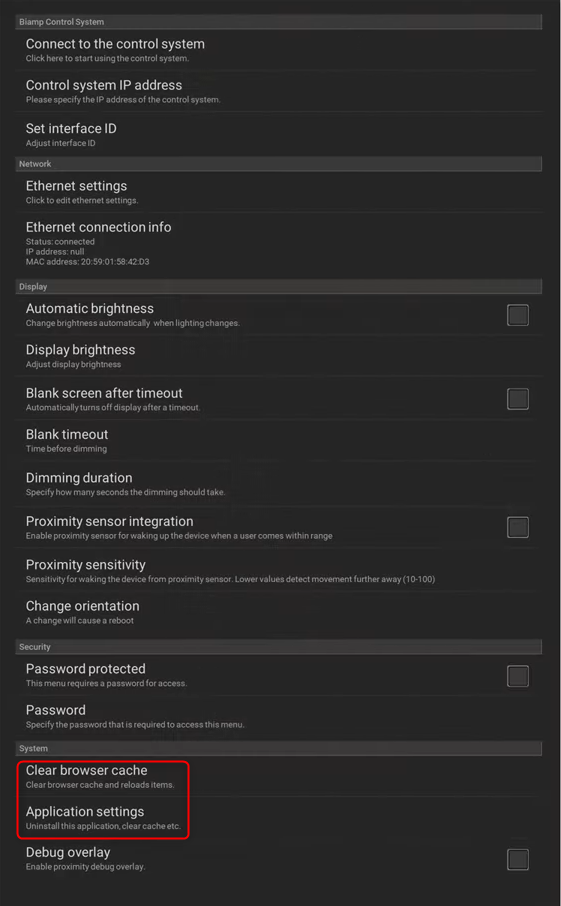
- Press the Pinhole Button on the bottom of the panel to bring up the “Pinhole Menu”.
- Select the “Clear browser cache” option.
- When the browser cache has been cleared, select “Connect to the control system” to establish a connection to the system controller and re-load the GUI.
Clear App Data
If clearing the browser cache fails to resolve the problem, you need the clear the data of the Touch Panel.
- Go to the “Pinhole Menu” > Application Settings > Biamp Control.
- Click the “Clear data”-button and confirm. This will take you to the boot screen.
- Enter the “Pinhole Menu” and press “Control System IP address” to re-enter the IP address of the system controller.
- Select “Connect to the control system” to establish a connection to the controller and re-load the GUI.
Update Firmware
If neither of the above methods is successful in resolving the issue, you may need to update the firmware on your Apprimo touch panel.
You can find the instructions for that process here: https://support.biamp.com/Biamp_Cont...mo_Touch_Panel
Touch Panel Pinhole Example
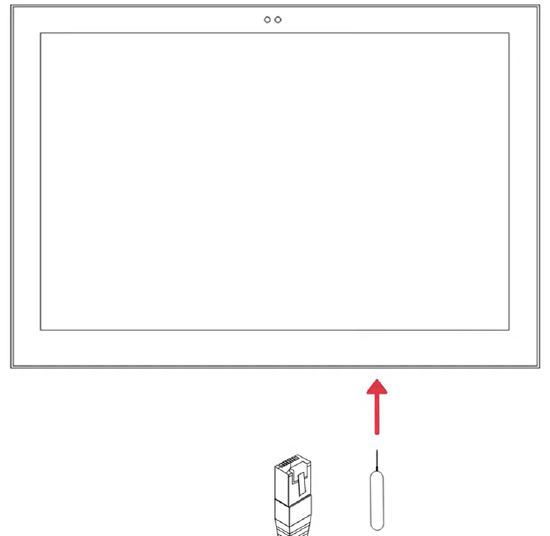
Pinhole Menu