

Updating Devio SCX firmware using the web interface
Devio SCX firmware can be updated on the using the onboard web interface and the Biamp Discovery application.
Update process
1. Download Biamp Discovery
Download and Install the Biamp Discovery application, which will seek out and discover all Devio SCX devices on the network. Select the appropriate network adapter at the top of the application's interface and click "Discover Devices".
When the Devio SCX device is discovered, it will show up with its Hostname, Model, Serial Number, IP address, and a link to its Web UI. Clicking on the Web UI link opens a new browser window and automatically take you to the device webpage. Alternatively, you can access the Web UI by typing it into the URL of a web browser.

By default, the username is admin, and the password is the serial number of the device. This can be changed in the web GUI.
2. Verify the current firmware on the SCX.
To find to identify the firmware version running on a Devio unit, click on the "Devices" tab. The tab will display the devices' Model, Description, Serial Number, and Firmware Version.

3. Download the firmware package.
Click here for the current Devio SCX firmware. Note that Devio SCXes run different firmware than Devio SCR series hardware.
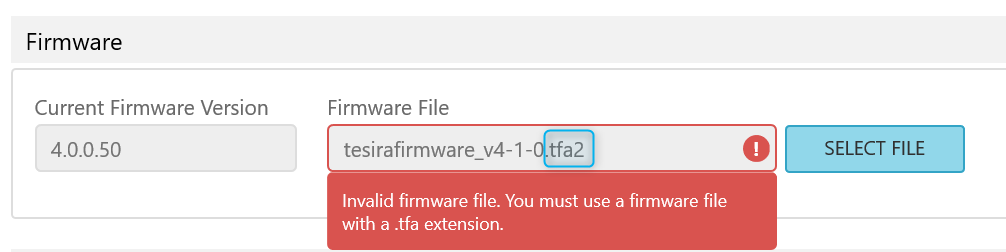
Devio SCXes use the Tesira firmware update (.tfa file). An SCX only supports a .tfa file when updating from the Web UI. If updating from the Tesira Software, the user will be able to send a .tfa2 file just like any Tesira device.
More information on the specific file types to send can be found here.
4. Open the Web UI Settings page.
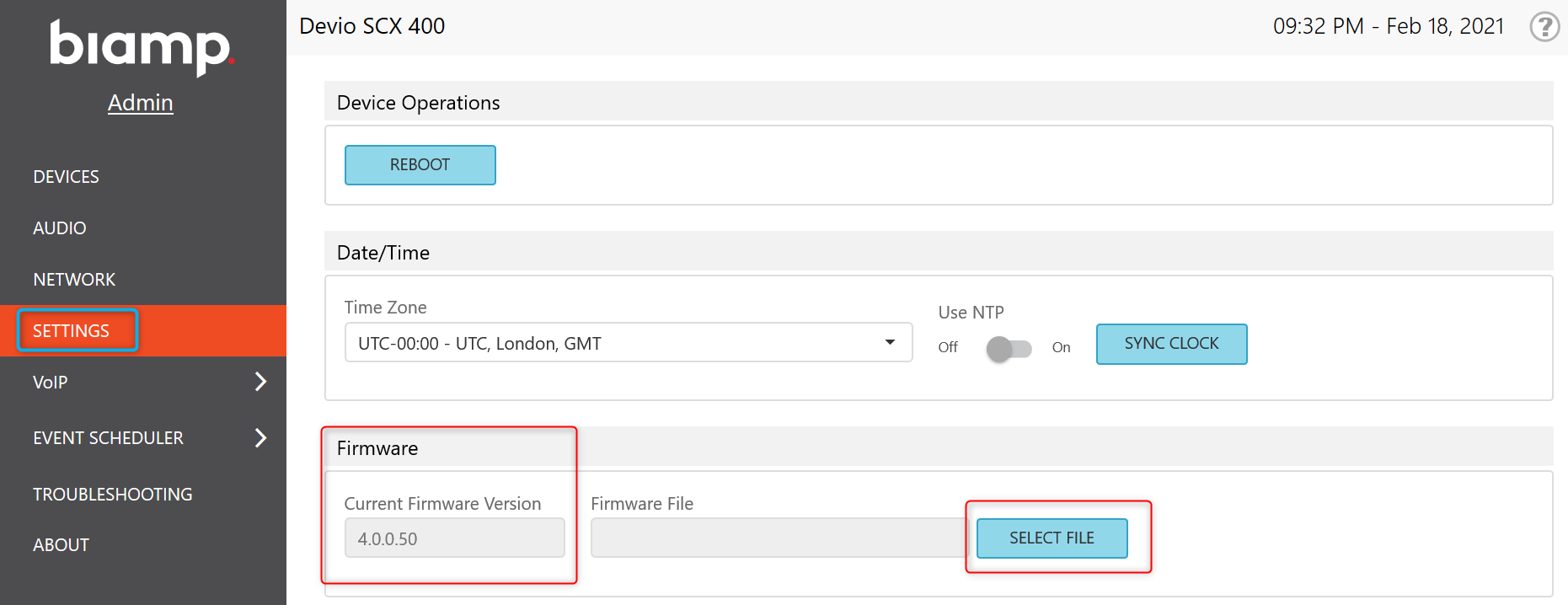
5. Click "Select File" and browse to the downloaded tfa file.
When the correct firmware file is selected, the Select File button will change to Update.
If the wrong file was downloaded and selected, the interface will not push the firmware. An alert popup will state the firmware file is invalid.
6. Launch the update by clicking the Update button.
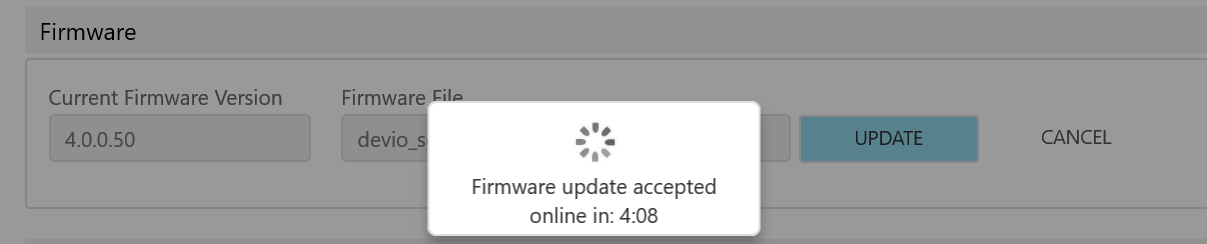
7. Refresh the Web UI and reenter the credentials.
After the Firmware updates runs, the unit will power cycle. Refresh the Web UI and reenter the credentials after they cycle.
Post Firmware update
Upon completion, log back into the web UI to check that the new firmware version was applied. You can check in the "Device" or "Settings" tabs to confirm that the update took and the Devio is reflecting the new version.
After the firmware update, it is recommended to run Launch. Even if Launch has already been run prior to the update, it should be run again if updated to a newer version. This will guarantee any refinements to the tuning process are applied. Launch can be run before or after the firmware update is run, there is no requirement to run Launch before updating Firmware. More information on Biamp Launch can be found here.