

Exporting Tesira logs
This article explains how to export a Tesira log file and read it using an XML reader such as Microsoft Excel.
This is a two-step process:
- Exporting the Log file from the Tesira Event Logs dialog.
- Opening or Importing the Log using an XML reader such as Microsoft Excel.
Prerequisites
- To export the Tesira log files, the Tesira Software is required.
- To review the Tesira Logs, an XML reader such as Microsoft Excel is required.
Exporting the log via Event Logs
- Connect to the network where the Tesira system resides and launch the Tesira software.
- Open the Event Logs dialog from the System tab.

- Select the system from the System List. Click Retrieve Logs.
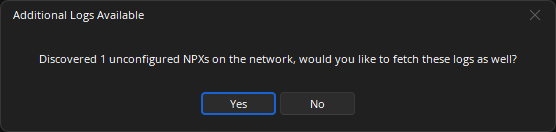
- Tesira may display an Additional Logs Available dialog. If so, click Yes.
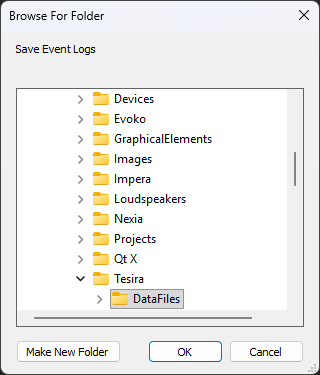
- In the Browse For Folder dialog, select a folder to save the Event Logs and click OK.
The Tesira software may appear to hang momentarily while it retrieves the logs from each device in the Tesira system. Once the process completes, an Event Log dialog will appear with the saved Event Log displayed as a table. You can use the sort fields in the header row to sort and filter each column.
.png?revision=1&size=bestfit&width=654&height=338)
Click Close to dismiss this window.
Reading the log in Microsoft Excel
Once the log has been exported, you can open it in a spreadsheet program such as Excel or XML reader. The instructions below are for using Microsoft Excel to import and open the XML file.
- In Microsoft Excel, go to File > Open.
- Browse to the newly-created folder where the XML log file is located.
- Click the XML file and click Open.
.png?revision=1&size=bestfit&width=554&height=312)
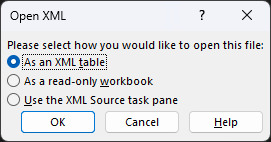
- In the Open XML dialog, select As an XML table and click OK.
.png?revision=1)
- Excel may display some XML Import errors. If so, click OK.
The imported log data will be displayed in a table. You can use the sort fields in the header row to sort and filter each column.

You can also save this document in a different format (e.g., XLSX, CSV) if desired.
Providing logs to Biamp Tech Support
Biamp's Global Tech Support Team may request Tesira log files as part of a support case. In a robust Tesira system, these files may exceed the file size limits for attachments set by your email provider. You can greatly reduce the size of these files by compressing them to a ZIP File.
Biamp Tech Support typically requests 3 files from the log file folder:
- SystemName.tmf
- SystemName.combined.xml
- TTPLog.txt
In Windows Explorer, you can select these files by holding Ctrl, then right-click and select Compress to... > ZIP File.

This will create a ZIP File in the same folder as your Tesira logs.