

Setting up NTP in Tesira and Vocia
This article describes how to configure the settings for an NTP server in Biamp products, specifically Tesira and Vocia
Tesira VoIP (SVC-2)
There are three options in the dropdown dialog for time synchronization for Tesira VoIP interfaces under VoIP Control Status>Properties>Network Time
Static
This option allows manual setting of date and time. Enter appropriate values in the available fields.

SNTP
SNTP (Simple Network Time Protocol) requires an SNTP server IP address to be entered for automatic time synchronization. You can also specify Time Synchronization Interval and Timezone under this option.

Host
With this option the VoIP interface syncs to the VoIP host servers time. No settings are available locally.
Tesira Server / Forte
NTP settings for the Tesira Server/Forté are available under Device Maintenance>Date and Time Settings.
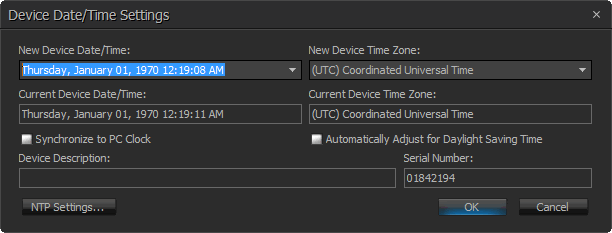
There are options to manually set time or sync to PC running the Tesira software. Click on the NTP Settings button to configure NTP. The NTP settings dialog provides a list of three NTP servers to which the device can automatically synchronize. If the network provides a DHCP server, it can also be chosen as the NTP server.
Ensure that the Tesira Server / Forté is configured with valid network settings like gateway/DNS server so as to be able to resolve and access NTP servers on the desired network.
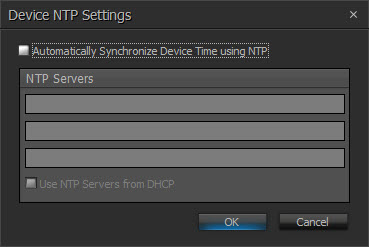
Note that with FW 5.0, Biamp Workplace requires accurate date/time for certificate validation. For this reason, the NTP Server list will be updated as shown when FW 5.0 is pushed (or a device is factory restored to 5.0):

What used to be a minor fault (cannot reach NTP server) has been downgraded so it will not prevent Launch from proceeding. However, Event Logs will provide helpful details regarding NTP:

Users can also attempt a tracert command for this server or others:

Vocia MS-1e
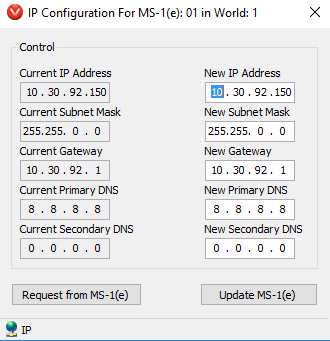
You must define valid static Gateway and DNS server addresses for the MS-1 or MS-1e. This is done under the Tools menu in Vocia software, in MS-1(e) Device Maintenance. If a valid gateway is not defined the device will not be able to reach out to the internet. We recommend setting both a primary and secondary DNS Server address. This will allow the MS-1e to resolve FQDN (Fully Qualifies Domain Name) requests for the NTP Server.
In your Vocia file the NTP settings are defined on a per World basis for the MS-1's and MS-1e's residing in that World. Settings are defined under Time Sync in World Properties > Options. You can use either the FQDN (Fully Qualifies Domain Name) or IP address for the NTP Server. Don't forget to set the appropriate time zone for the World.

Time Sync is a different means of setting the time than Set World Time as the user is specifying that an NTP server to be used. It is selected here and configured correctly it will eventually override time set using the Set World Time command.
Note that some time servers will not update the system time if too much drift has occurred. Drift is where a time server begins to slowly lose or gain time and a difference is created between the two devices.
The current system time is shown in the main layout when the software is online with a configured Vocia system. A system whose clock has never been set may not sync with a time server.
With NTP servers it is recommended to first set a device's clock to be accurate within a few minutes of local time. Some times servers will not sync devices which are beyond a set window, for example, in some cases the clocks must be within 17 minutes of one another to allow sync.
Once configured, Vocia polls the NTP server roughly once per minute.