

Prepare a Windows MTR for Biamp USB audio
This article describes best practices for configuring a Windows based Microsoft Teams Rooms device for use with a Biamp USB audio system.
Configure the Biamp peripherals
Whether you are using a Tesira system, Devio system, or Parle conferencing bar, Biamp recommends running the latest firmware version. If the system is configured using Biamp Launch, we recommend running Launch following a firmware update to apply any new features and audio parameters. TesiraFORTE X, Devio SCX and Parle bars in Launch mode allow the selection of a "UC profile". You may choose your preferred profile (in many cases this can be changed during runtime, allowing live A/B auditioning). The "Generic" profile represents Biamp's favored audio tuning.
Prepare the MTR system
Device configuration and housekeeping
Firstly, refer to the Windows UC Housekeeping Guide to ensure the MTR operating system and USB driver configuration is up to date. The Microsoft Teams Rooms application is updated automatically, and the frequency of this is managed by the end user's organization. Check the Release notes for Microsoft Teams Rooms for any appropriate updates, and alert the person responsible for managing their deployment.
MTR audio settings
Generally, a Microsoft Teams Room system, when connected to a certified USB endpoint like a Biamp A/V peripheral will require no additional configuration for good performance. However, it is worth checking a couple of parameters, as it's important to remember that audio quality is dependent on the entire signal path.
Windows Audio Enhancements
Some versions of Windows present a feature in the audio service that offers additional processing in the background. Bear in mind that this processing is generally beyond your control as a system installer or end user. It's usually recommended to achieve optimal audio performance within the high quality, MS Teams certified peripheral. Additional downstream processing can modify that signal in unknown and potentially detrimental ways. If this feature is available in the operating system of the MTR device in question, it's a user preference, but Biamp strongly recommends it is disabled. Note that this component is independent of the MTR application and resides in the OS, so can differ between Windows versions, and change following an update. In the Windows side of the MTR (requires admin access), navigate to the Control Panel. An easy way on the touchscreen is to long press (right click) on the taskbar speaker icon and enter Sound settings:
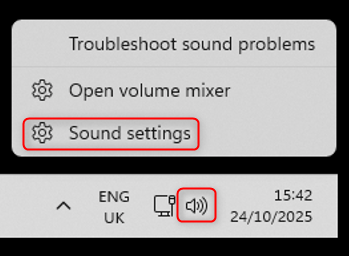
Scroll to Advanced and open "More sound settings":
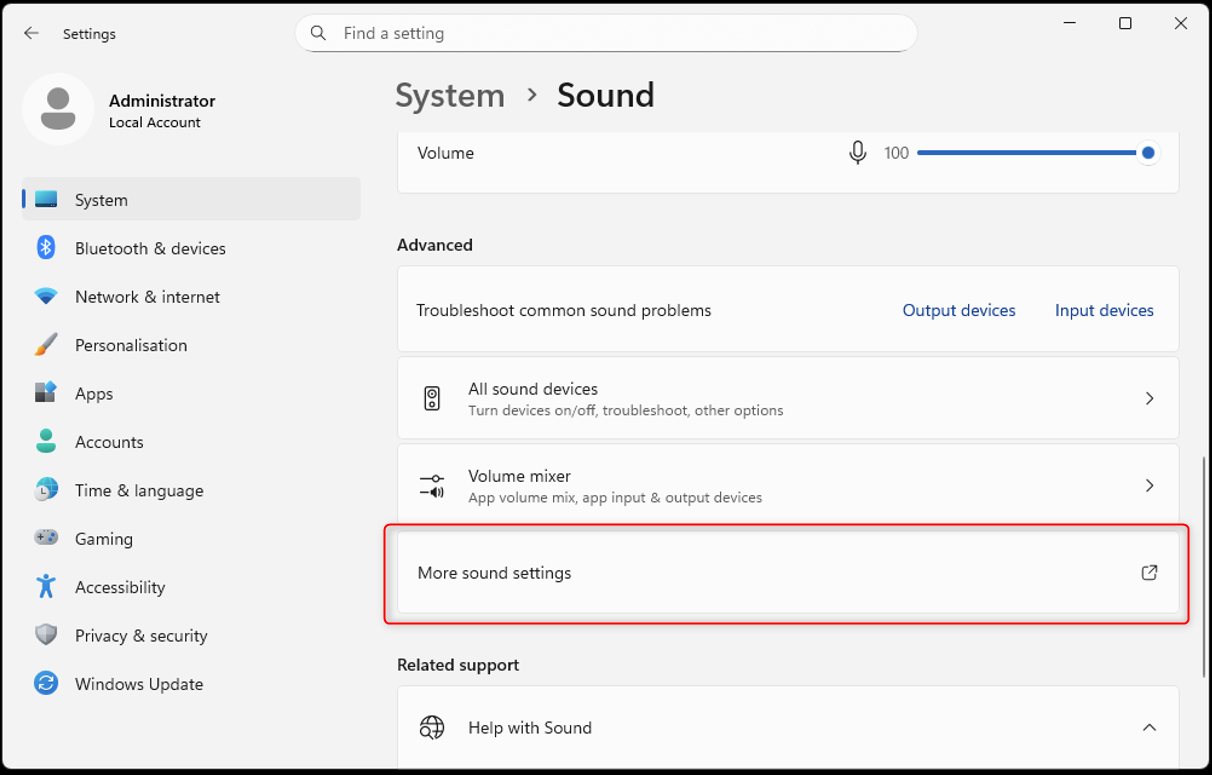
Enter the Recording (microphone) tab and select the Biamp USB device. Navigate to Advanced and look for the "Enable audio enhancements" check box, if present. If it is enabled, deselect the checkbox and hit OK.

Do the same in the Playback (speaker) tab.
MS Teams noise suppression
By default, an MTR running an MS Teams Pro license automatically offloads AEC processing to the certified Biamp USB device. Noise suppression is offered in all Biamp certified peripherals, but the built-in noise suppression (NS) in an MTR is not offloaded automatically. This is not necessarily a bad thing; MTR noise suppression is of high quality, and all Biamp devices have been optimized to work well with MTR NS whether it is enabled or disabled in the Biamp device. However, as previously stated, the audio through the system is dependent on the entire signal chain. It's recommended to configure your Biamp system optimally, and audition quality with MTR NS on and off. You can do this in a live Teams meeting by navigating to "more Actions" (...) "Audio Settings" and toggling noise suppression on/off.
If the preferred configuration is with MTR noise suppression off, note that is is on by default and will be automatically enabled in the next meeting. It is possible to disable noise suppression permanently by modifying the startup configuration .xml. Please reach out to Microsoft support for assistance in implementing this.
Teams Basic or Pro License
A Teams Room system can run with a Basic or Pro license dependent on the end user's needs. The audio profile and options differ between the two licenses, for example AI noise suppression is not available with the Basic license. It's worth taking this into consideration when commissioning the system. While it's not possible to directly A/B the difference, a solution is to test the audio system in as many different scenarios and configurations as possible. Make calls using a number of different platforms, such as the MTR itself, Teams desktop client, and even other UC vendor platforms. This is a great way to demonstrate the effect of different call paths on the audio performance of their A/V kit to the customer.