Workplace Command: Tesira Best Practices
This article provides best practices for making your Tesira project easier to monitor and control in Workplace Command.
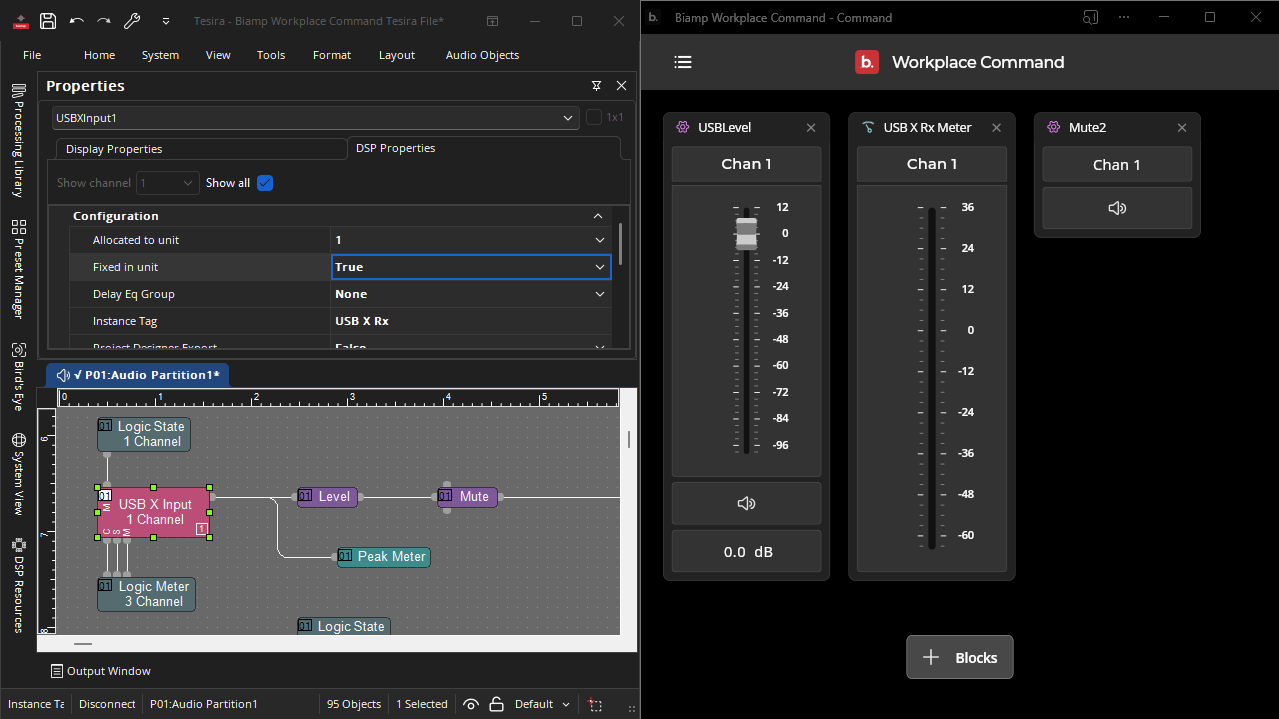
As a Workplace Command Admin, you can add several types of Tesira blocks to a Canvas, where you, or any Workplace Command User or Admin, can monitor and control them as Command blocks. Workplace Command automatically pulls information about these blocks from the Tesira project. There is currently no way to customize the way a Command block looks from within Workplace Command, but you can adjust its name and behavior by editing the Tesira project itself.
Block names
Workplace Command uses the Instance Tag of a block as its name in the Canvas and Sidebar. The Instance Tag is case sensitive and is the unique name of a software object used in a Tesira project. Tesira Text Protocol also uses a block's Instance Tag as its identifier. By default, a block's Instance Tag matches its immutable Object Code, but it can be customized. Customizing the Instance Tag of each block — at least, each block that you intend to add to the Canvas — can help you and other Workplace Command Users and Admins identify that particular block's purpose.
You can edit a block's Instance Tag from the DSP Properties panel.

Channel names
Workplace Command uses each Channel Name of a block to label its channels in the Canvas. Unlike Instance Tags, Channel Names do not have to be unique across the Tesira project. By default, channels have generic names like "Chan 1," "Chan 2," and so on. Giving each channel within a block a unique name can help identify that particular channel's purpose.
You can edit a block's Channel Names from the DSP Properties panel.

Command String blocks
For Command String blocks, Workplace Command lists each command by its Command ID.
You can edit a Command String block's Command IDs from the DSP Properties panel or the Edit Command String dialog box.

System Presets
The System Presets block in Workplace Command lists every preset in the Tesira project by its Preset Name.
You can edit the Tesira project's Preset Names from the Preset Manager panel.

Level limits
Level, Matrix Mixer, and Source Selector Command blocks display the block's current levels as an editable text field and/or slider. By default, each level has a minimum and maximum value of -100 and +12, respectively. Because every level of every block in the Canvas can be adjusted by any Workplace Command User or Admin, you may want to constrain these lower and upper bounds to something more reasonable.
You can edit a block's minimum and maximum levels from the DSP Properties panel.

Fixed I/O blocks and channels
Input/Output (I/O) blocks are not represented in the Workplace Command Canvas, but they form the start and end of every audio signal pathway in a DSP. Whenever you compile a Tesira project, the Compiler allocates each I/O block to a physical device and each channel to a hardware channel within that device. You can force the Compiler to allocate a block with a specific device by setting the block as Allocated to unit and Fixed in unit in the Tesira project, so that the other blocks in your project — the Mixers, Controls, Meters, and so on — will always match the pathways you intended.
You can allocate and fix a block to a specific unit from the DSP Properties panel.